Edit your workout plans on a computer
Building a training week with your thumb is slow. With GymPsycho you open web.gympsycho.com on your computer, scan a QR code with your phone and edit your plans with a real keyboard on a big screen — exercises, sets, reps and weights. Your plans keep living on your phone: every change is saved there, nothing is kept on a server, and you never create an account.
Open web.gympsycho.com Get the free app →
How it works
1 Open web.gympsycho.com on your computer
Any current browser works. The start page shows a QR code right away — no sign-up and no download.
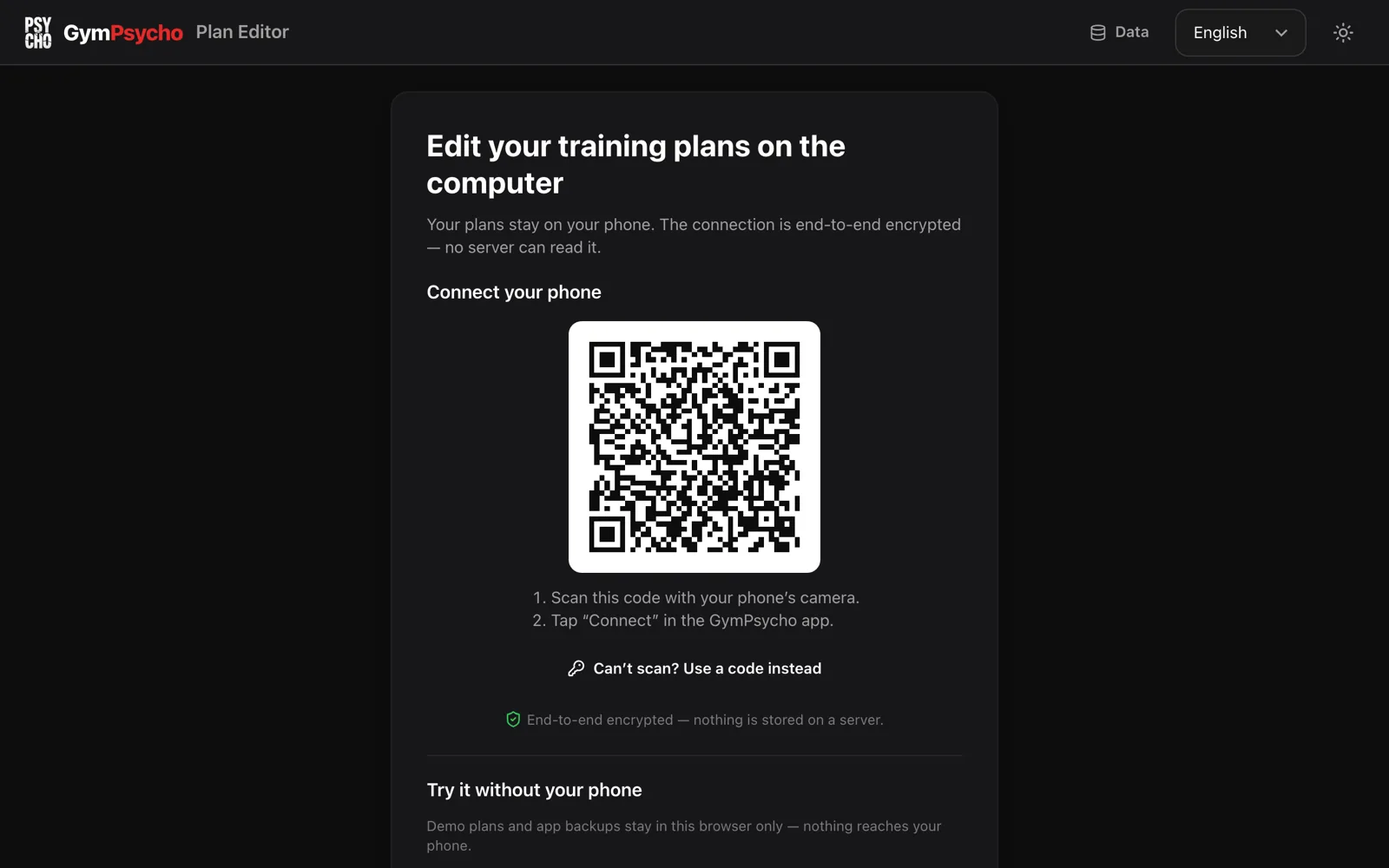
2 Scan the code and tap “Connect”
Point your phone’s camera at the code. GymPsycho opens and asks “Connect this browser?”, together with the browser it found, for example Chrome on macOS. Nothing is shared before you tap “Connect”.
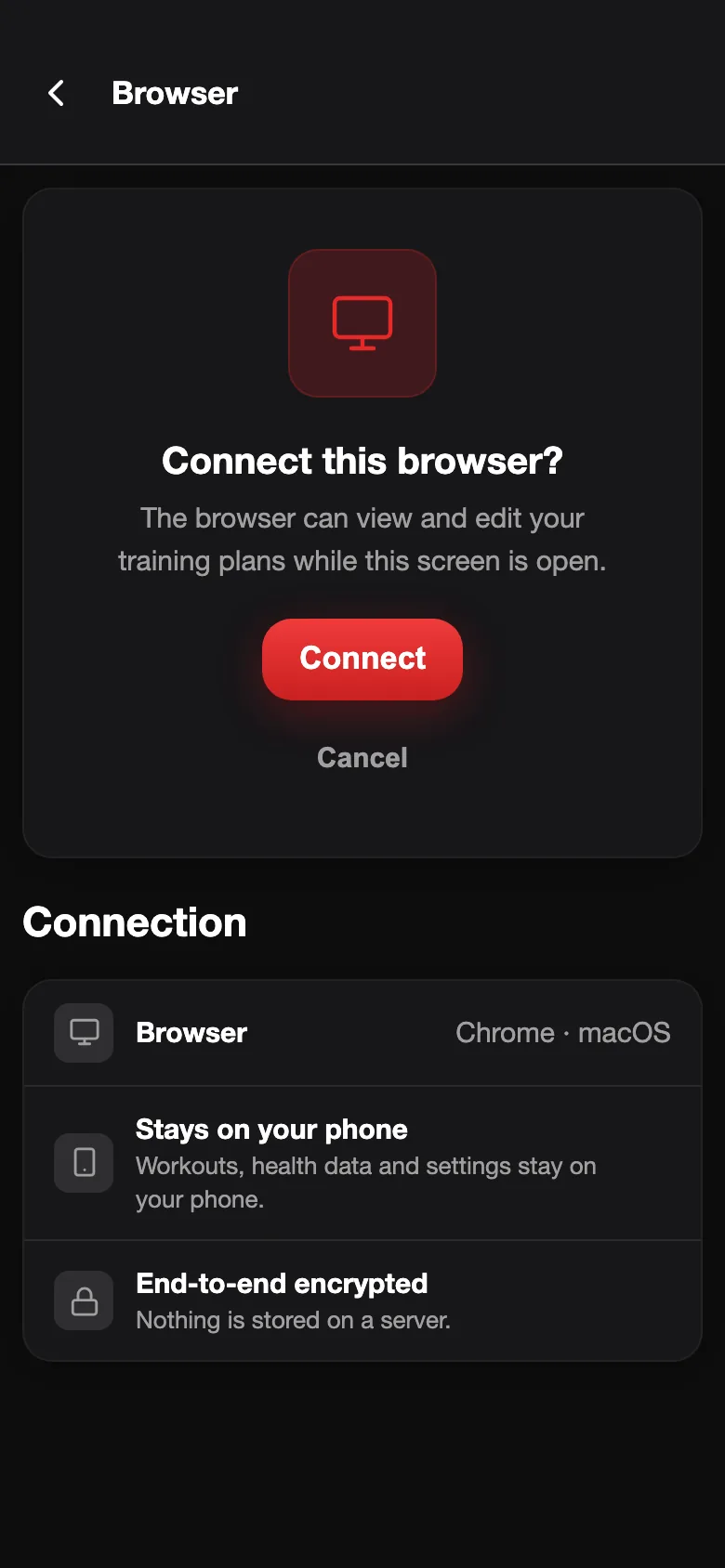
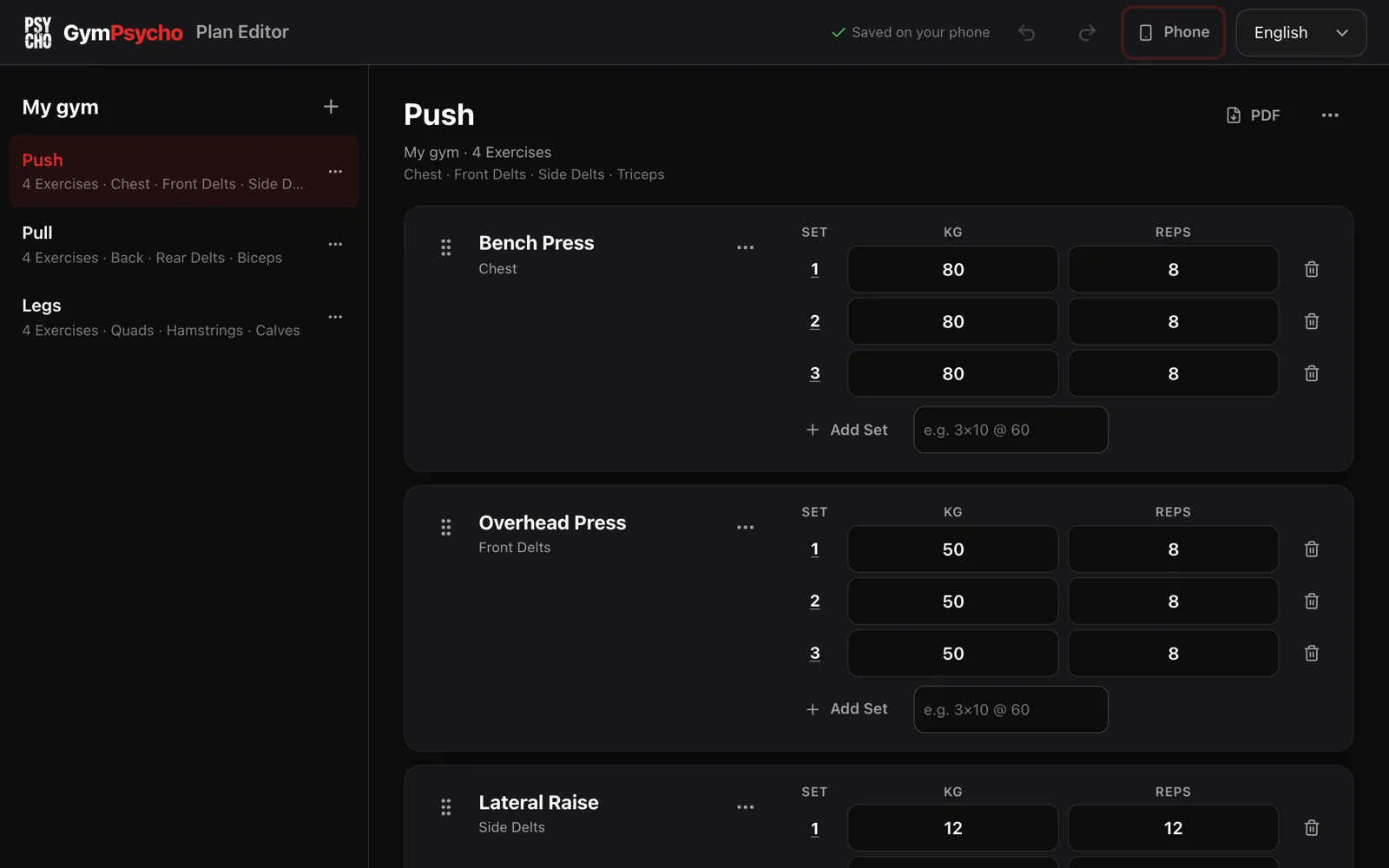
3 Edit your plans in the browser
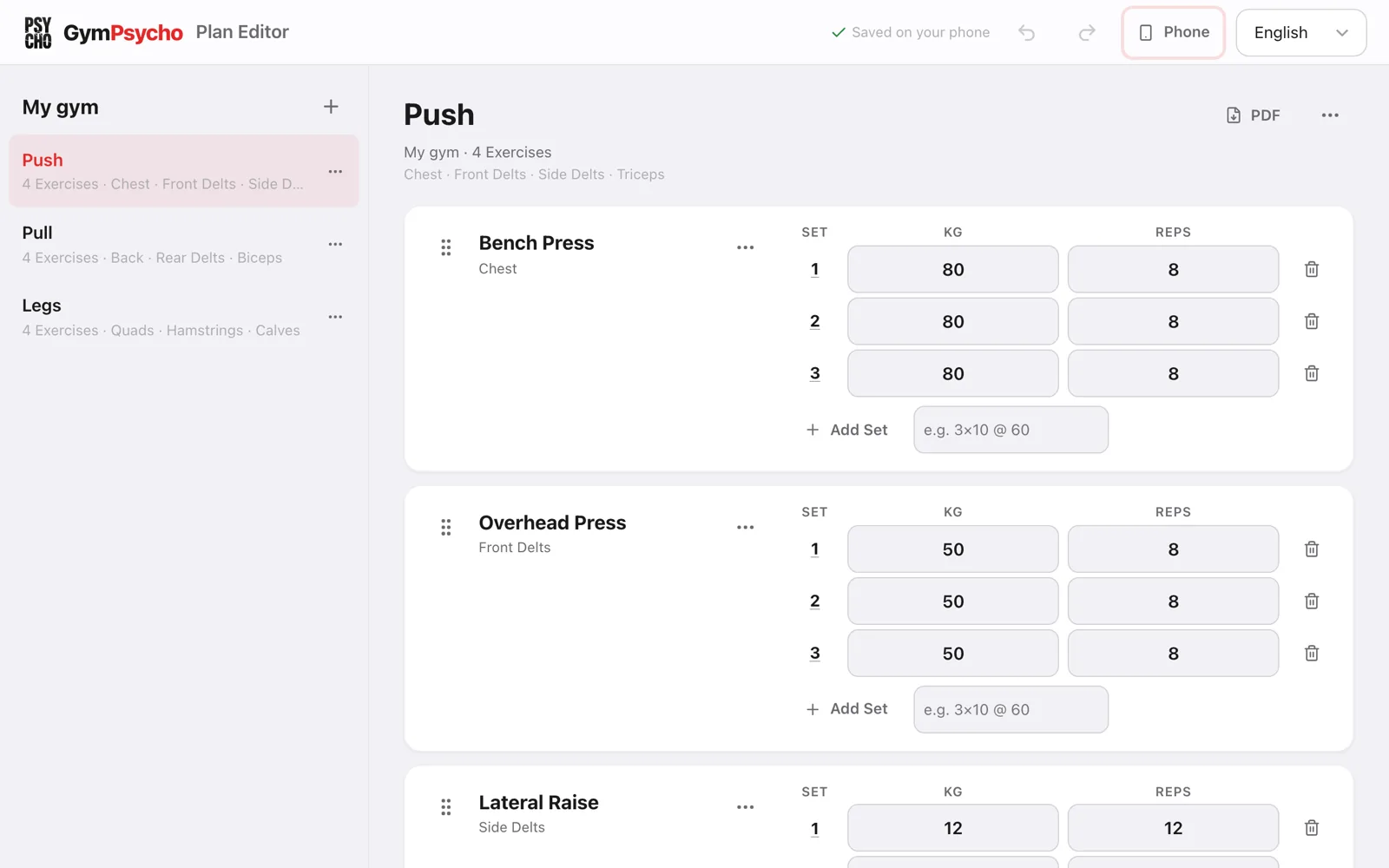
Your plans appear in the language of your app. Every change goes to your phone right away and is saved there — the top bar shows “Saved on your phone”. Keep the app open on your phone; its screen stays on during the session.
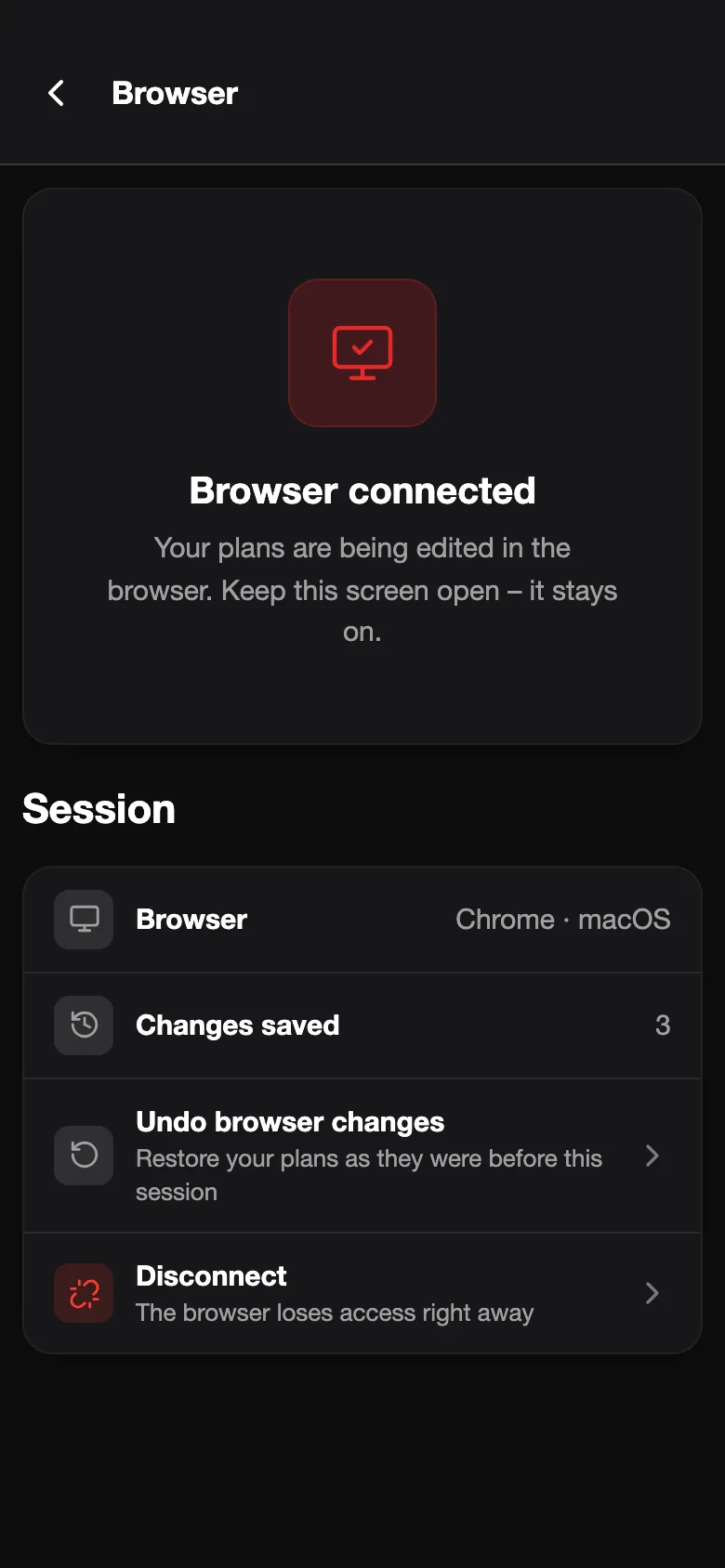
4 Disconnect when you are done
Tap “Disconnect” on your phone or in the browser’s “Phone” menu — or simply close the tab. After 30 minutes without activity the session ends by itself.
No camera at hand? Connect with a code
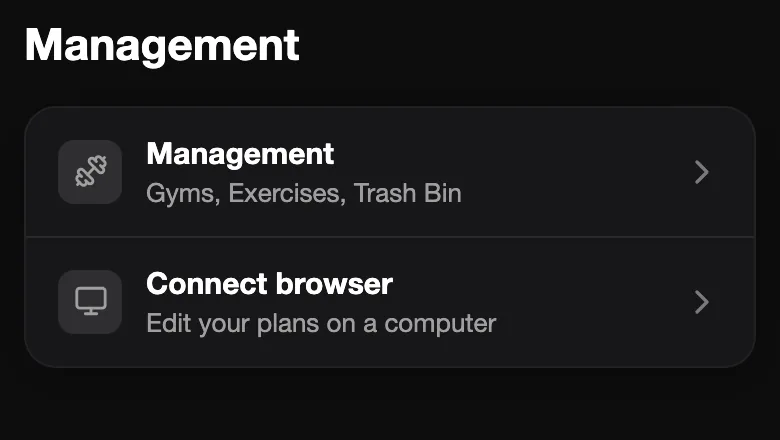
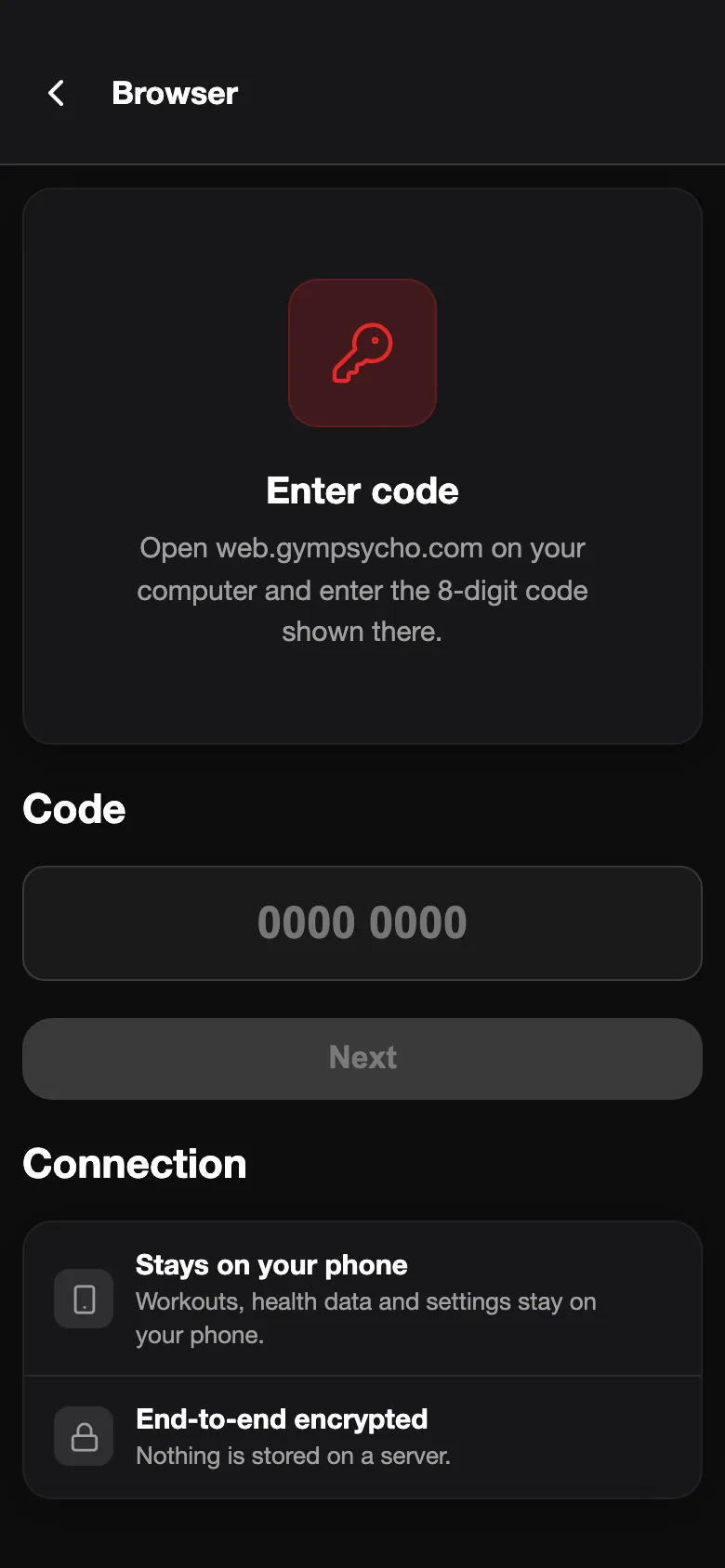
In the browser choose “Can’t scan? Use a code instead” — it shows an 8-digit code. On your phone open Settings → Connect browser and type the code in. Both screens then show the same 6-digit comparison number; tap “Matches – connect” only if it matches. That number protects the connection even if someone tampered with it on the way.
What you can do in the browser
- Plans: Create, rename, duplicate and archive plans. A plan you delete goes to the trash in the app, where you can restore it.
- Exercises and sets: Search the full exercise library, set reps and weights, mark warm-up, drop and failure sets and build supersets. Quick entry understands “3x10 @ 60”.
- Your own exercises and notes: Create custom exercises and edit the note the app shows every time you train an exercise.
- Undo and PDF: Undo and redo every edit while you work, and save any plan as a print-ready PDF.
- Undo on the phone: Changed your mind? “Undo browser changes” on your phone puts every plan back to how it was when you connected.
What stays out of the browser
The browser edits plans — it does not log workouts. Your workout history, health data, body weight, personal records and your other settings never leave your phone, and the order of your plans is changed in the app. During a workout your phone does not connect: finish the workout first.
Private by design
- End-to-end encrypted: Your plans travel encrypted with AES-256-GCM. The key sits in the QR code after the “#” — the part of a web address that browsers never send to a server.
- Nothing stored on a server: A relay passes the encrypted messages between phone and browser and keeps none of them. It only notes a channel ID, hashed tokens and times, deleted minutes after the session ends — at the latest 2 hours after it started.
- You stay in control: Every connection needs your confirmation on the phone. If a second device tries to join, the session ends for safety.
- Only what the editor needs: The browser receives your plans with how often and when you last trained each, gym names and units, the exercise list, your exercise notes and the few app settings it needs, such as language, theme and Pro status. Your workouts, health data, body weight and personal records are never sent.
- No account: There is no login, no password and no email address. Closing the tab ends the session.
Every detail is in section 4 of our privacy policy.
What you need
- GymPsycho 2.82 or newer: The free app on your iPhone or Android phone.
- A computer with a current browser: Chrome, Edge, Firefox or Safari, on a Mac or a PC.
- Internet on both devices: They do not have to be on the same Wi-Fi.
- The app open on your phone: Keep it open while you edit. If the phone locks, your changes wait in the browser and arrive as soon as you open the app again.
A second screen, not a cloud copy
The browser only works while your phone is connected, because there is no copy of your plans anywhere else — that is the price of having no account and no server storage. If you want a web app that keeps working with the phone switched off, Hevy offers one, with an account and your data in its cloud. If you would rather keep your training data on your own device, this is the trade-off we chose on purpose.
Frequently Asked Questions
Do I need an account to use the web plan editor?
No. You connect by scanning a QR code with the GymPsycho app and confirming on your phone. There is no login, no password and no email address — just like in the app.
Which browsers does it work in?
Any current browser — Chrome, Edge, Firefox or Safari on a Mac or PC. A very old browser without the required encryption functions shows a message instead of connecting.
Does the app have to stay open on my phone?
Yes. Your phone is where your plans live, so it takes part in the session: keep GymPsycho open on its connection screen, and the phone’s display stays on. If the phone locks or you switch apps, the browser keeps your edits waiting and sends them as soon as you are back in the app.
What happens when I disconnect or close the tab?
Every change that reached your phone stays saved there, and the browser keeps no copy of your plans. If an edit has not reached the phone yet, the browser tells you before you disconnect.
Can I undo changes I made in the browser?
Yes, in two ways: with undo and redo in the browser while you edit, and on your phone with “Undo browser changes”, which restores all plans to how they were when you connected.
Can I try it without the app?
Yes. Under “Try it without your phone” on the start page you can load demo plans or an app backup file. That data stays in your browser and never reaches a phone.
Is the web plan editor free?
Yes. It is part of the free GymPsycho app — no Pro subscription needed.
Can I log a workout in the browser?
No. The browser is for planning; you log your sets in the app, where the rest timer, your watch and the AI weight suggestions run.
What if someone else sees my QR code?
Nothing happens without a tap on your own phone. A session accepts exactly one phone and one browser; if a second device tries to join, the session is closed and both sides are warned.
Try GymPsycho Free
Free to use, forever. Install GymPsycho on your phone, then open web.gympsycho.com on your computer. Plus every Pro feature free for 60 days — no purchase, no subscription.
Download Free